
Connect Suunto to Walk15
At the moment, Walk15 does not have a direct integration with Suunto devices.
To make sure your steps and activity data are transferred to Walk15, your Suunto watch must be connected via Apple Health.
Apple Health acts as an intermediary, collecting data from Suunto and sharing it with Walk15.
1. Open Settings in the Suunto app
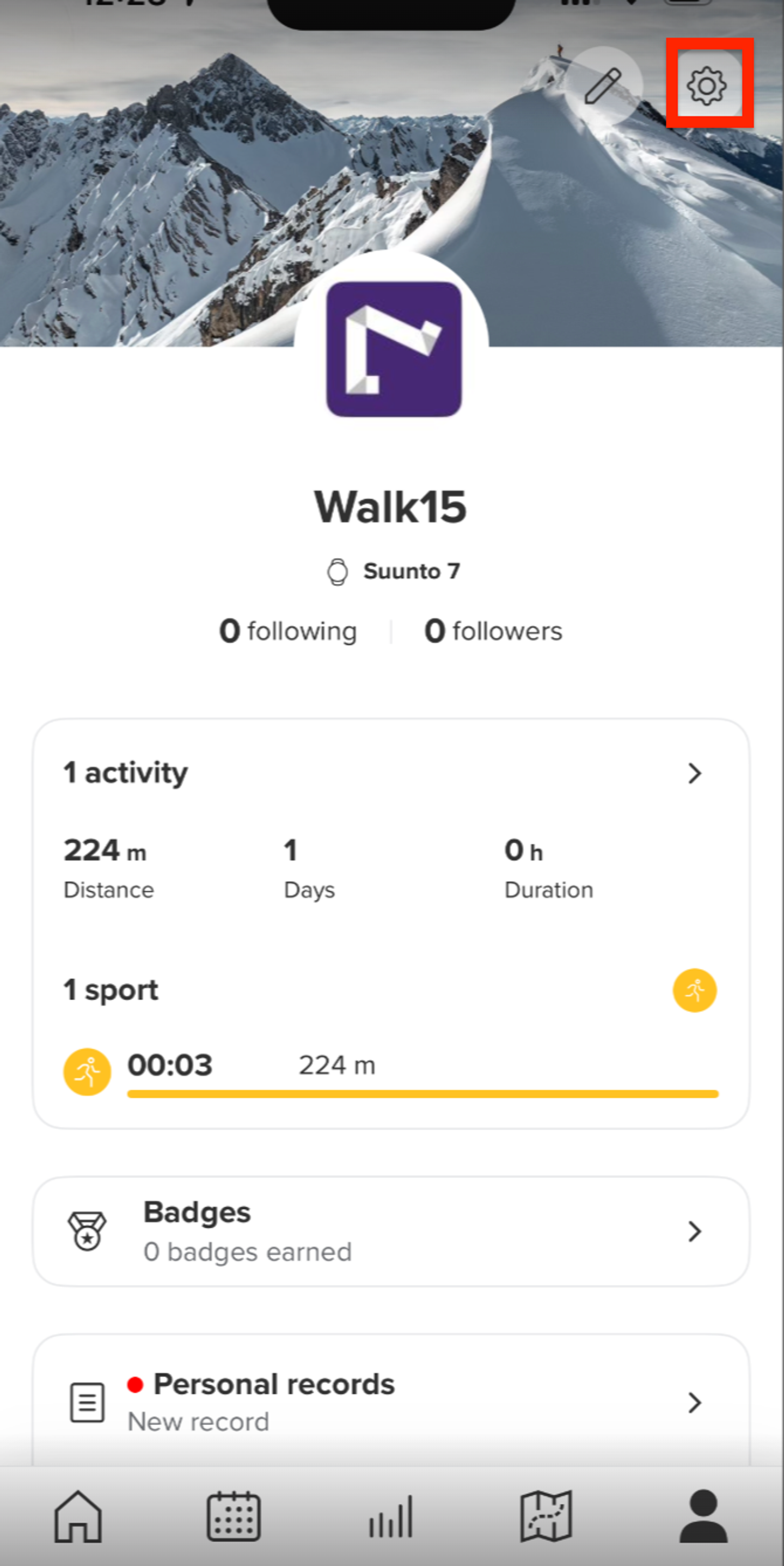
- Open the Suunto app and go to your Profile.
- Tap the Settings icon in the top-right corner.
2. Enable “Save to Apple Health”
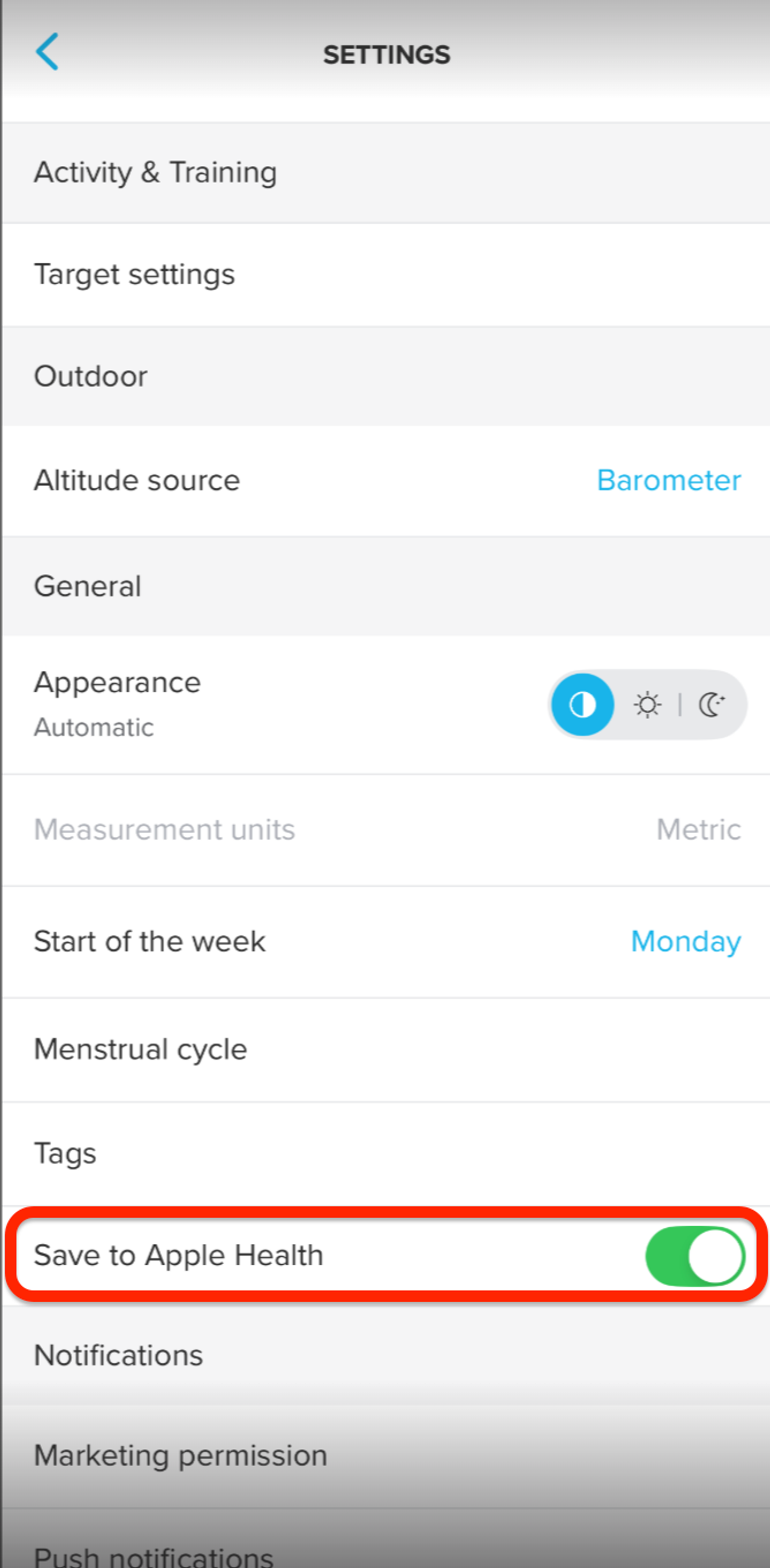
- In Settings, scroll down until you find Save to Apple Health.
- Turn on Save to Apple Health. Make sure the toggle is green, as shown in the example below.
3. Grant Suunto permissions to Apple Health
- Open the Apple Health app
- Go to Sharing
- Select Apps
- Find and select Suunto in the list
- Turn on the Steps permissions (and other activity data if shown.
This will ensure that Suunto transfers steps to Apple Health.
4. Set Suunto as the preferred data source for Apple Health
- In the Apple Health app, go to Steps
- Scroll down and select Data Sources & Access
- At the top, tap Edit
- Drag Suunto to the first position (or as high as possible in the list)
- Tap Done
This is a very important step - Apple Health will always pull data from the top source.
5. Select Apple Health in the Walk15 app
- Open the Walk15 app
- Go to Profile → Settings
- Select Activity Data Source
- Check Apple Health
6. Check if it works
- Open the Walk15 app
- Wait a few minutes
- Check if the steps have updated
🔹 We recommend that you walk a few hundred meters before a longer walk and check if the steps appear in Walk15.