
Samsung Health
Health Connect is recommended for syncing health data from Samsung Health. Samsung phones and watches. Please note that this option won't be visible in Walk15 if Health Connect isn't installed on your device.
Install Health Connect
1. Install Health Connect
from the Google Play Store on your Samsung device.
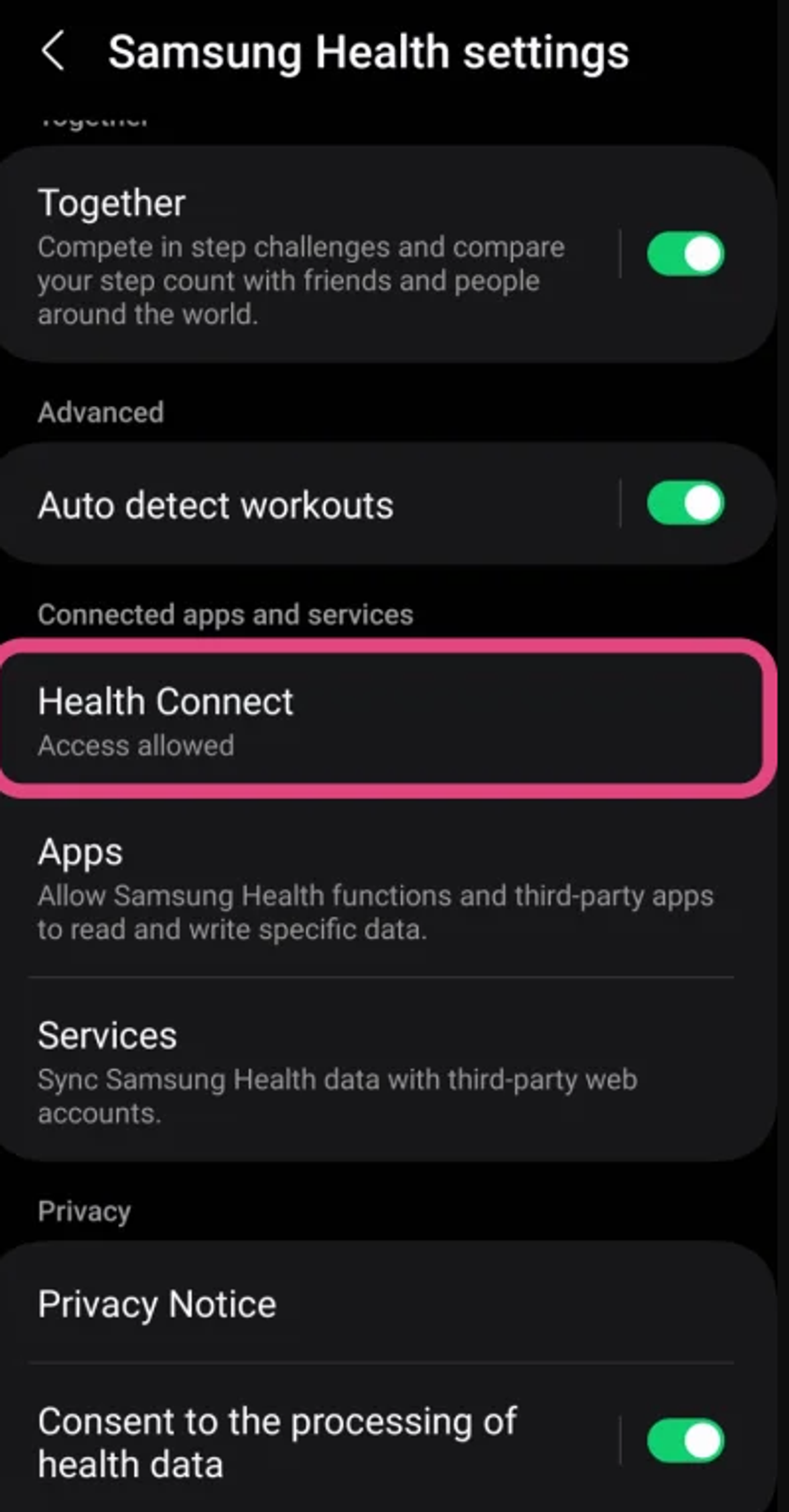
2. Enable Health Connect in Samsung Health
by going to the Samsung Health app, navigating to settings, and selecting Health Connect. Allow necessary permissions for data sharing.
Sync Health Connect with Walk15
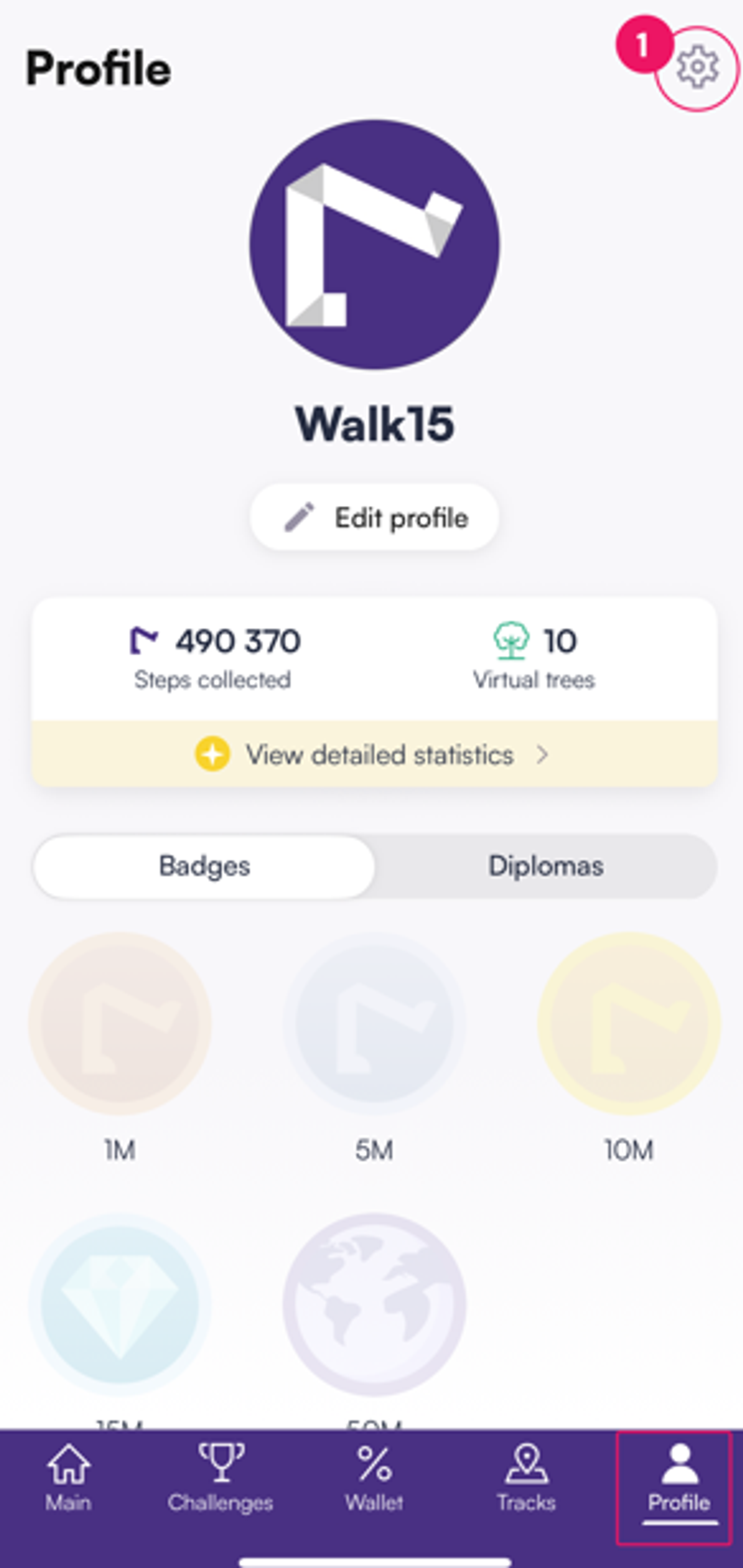
1. Open Settings in Walk15
Tap the Profile tab in the Walk15 app, then click the gear icon in the top corner to access Settings:
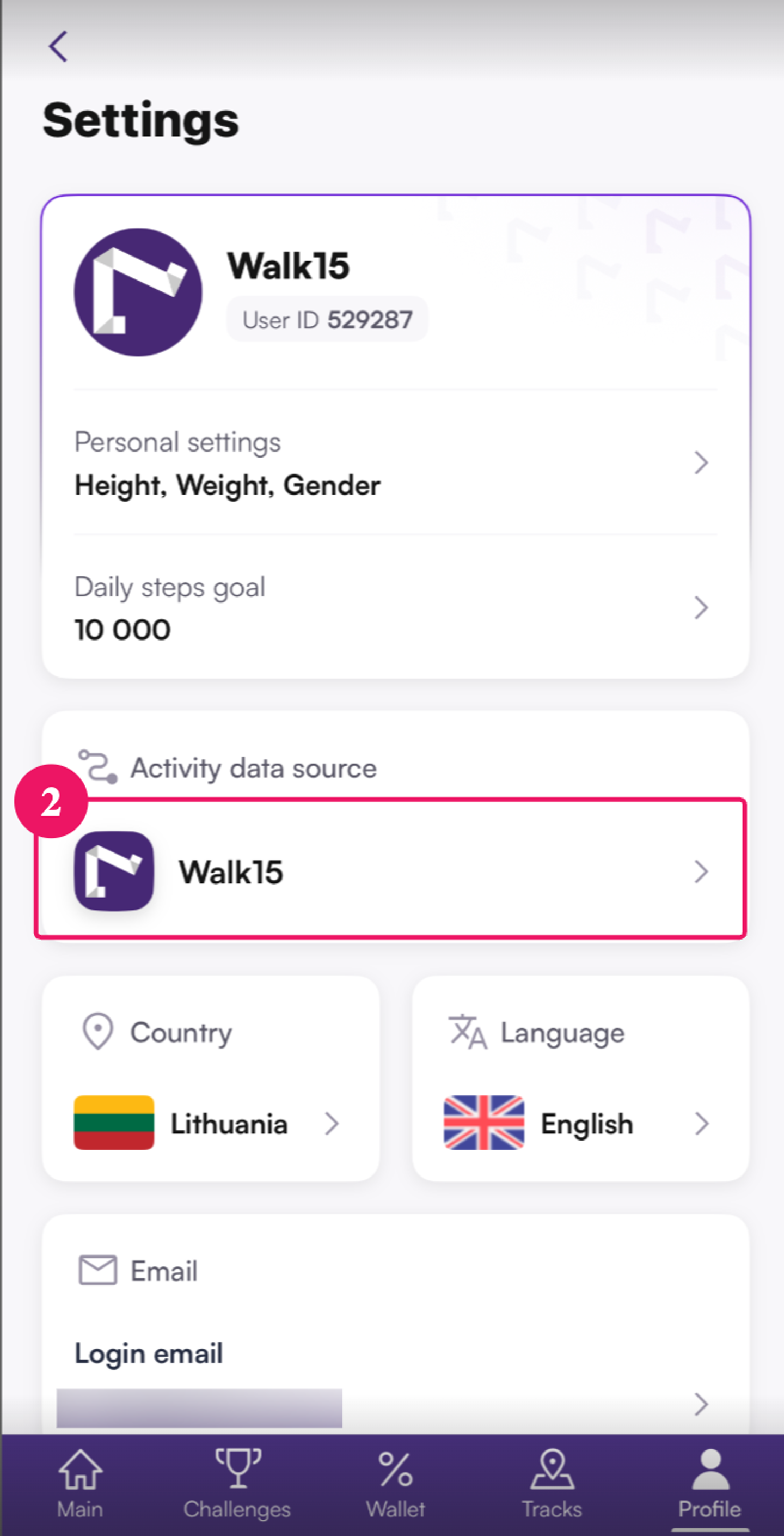
2. Select Step provider
In the Settings menu, find and tap Activity data source:
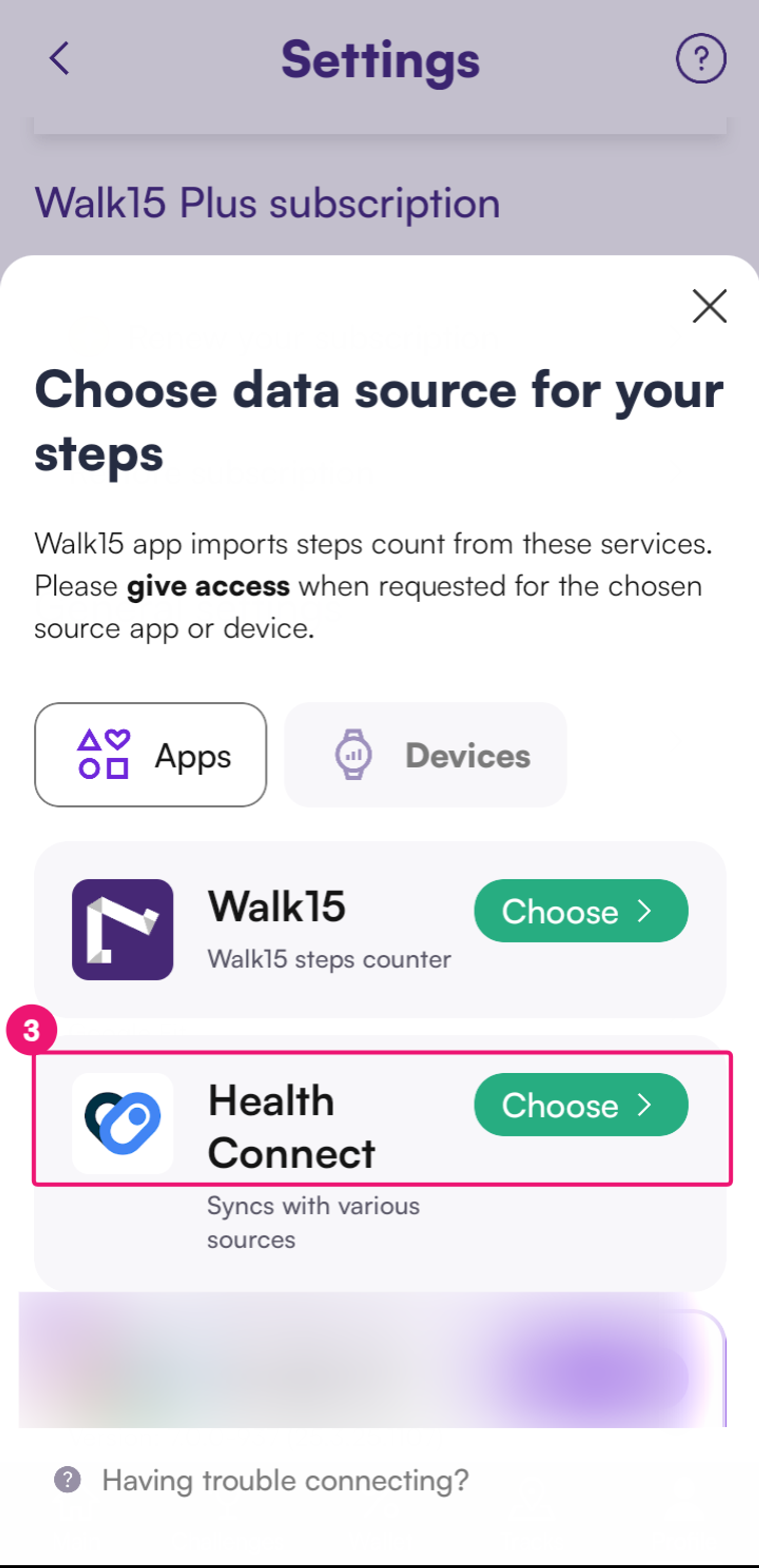
3. Choose Health Connect as Your Steps Provider
In the Steps provider options, choose 'Health Connect' from the list:
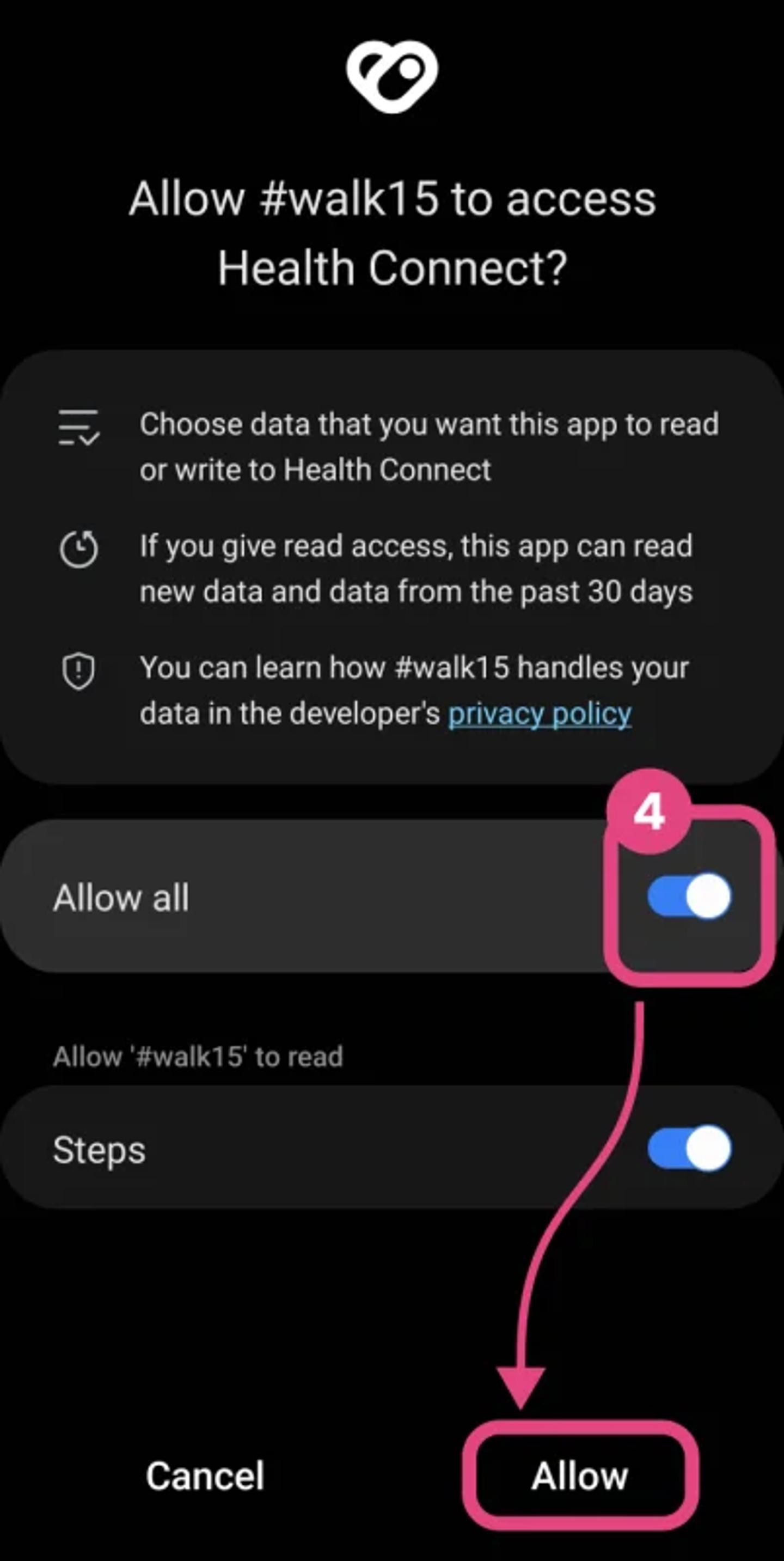
4. Authorize Health Data Access
On the Health Connect permission screen, toggle on the option for 'Steps' to allow Walk15 to access your step count data. Confirm by clicking the 'Allow' button:
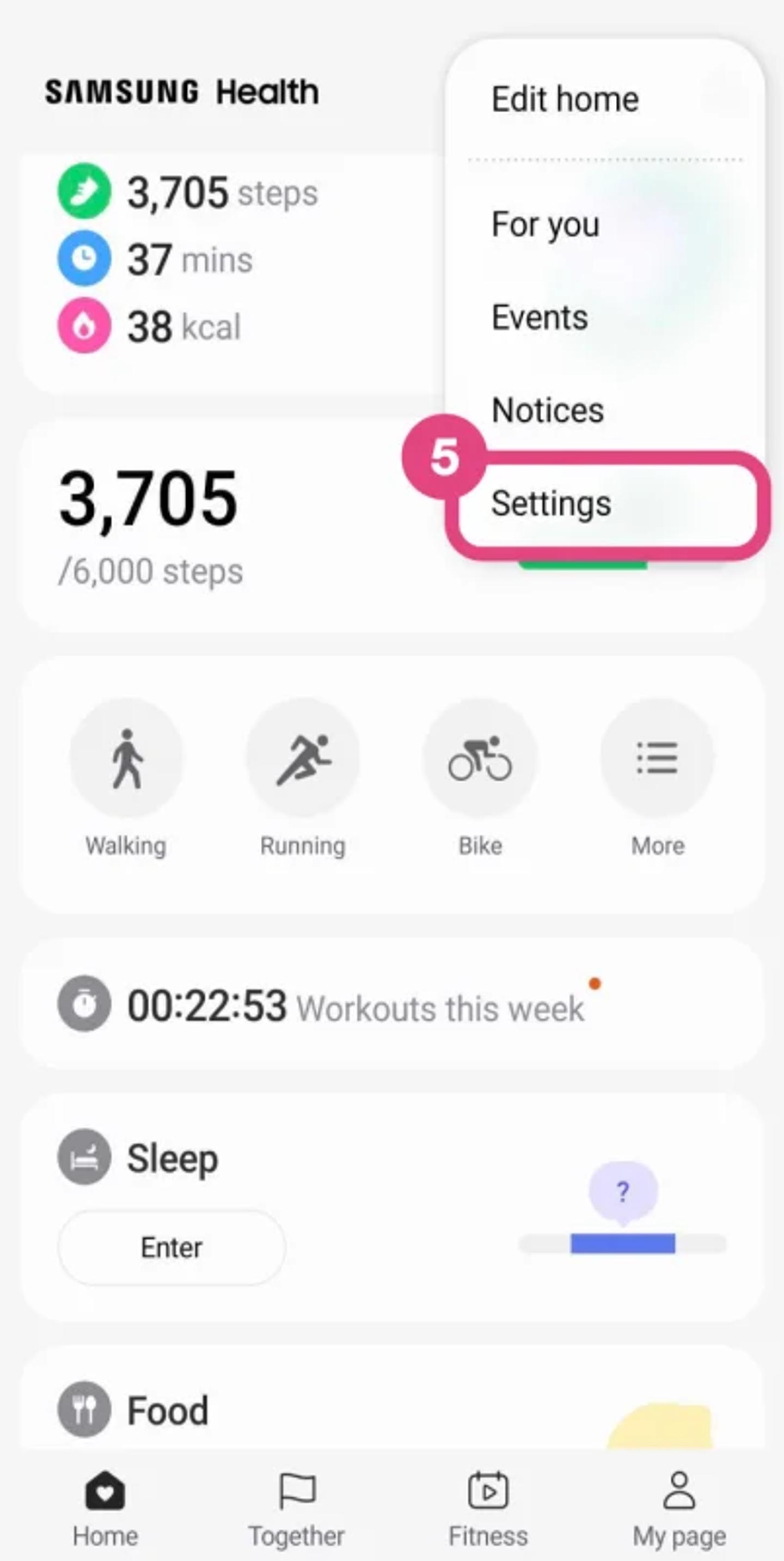
5. Open the Samsung Health app settings
Open the Samsung Health app, click on the menu in the top right corner, and select "Settings":
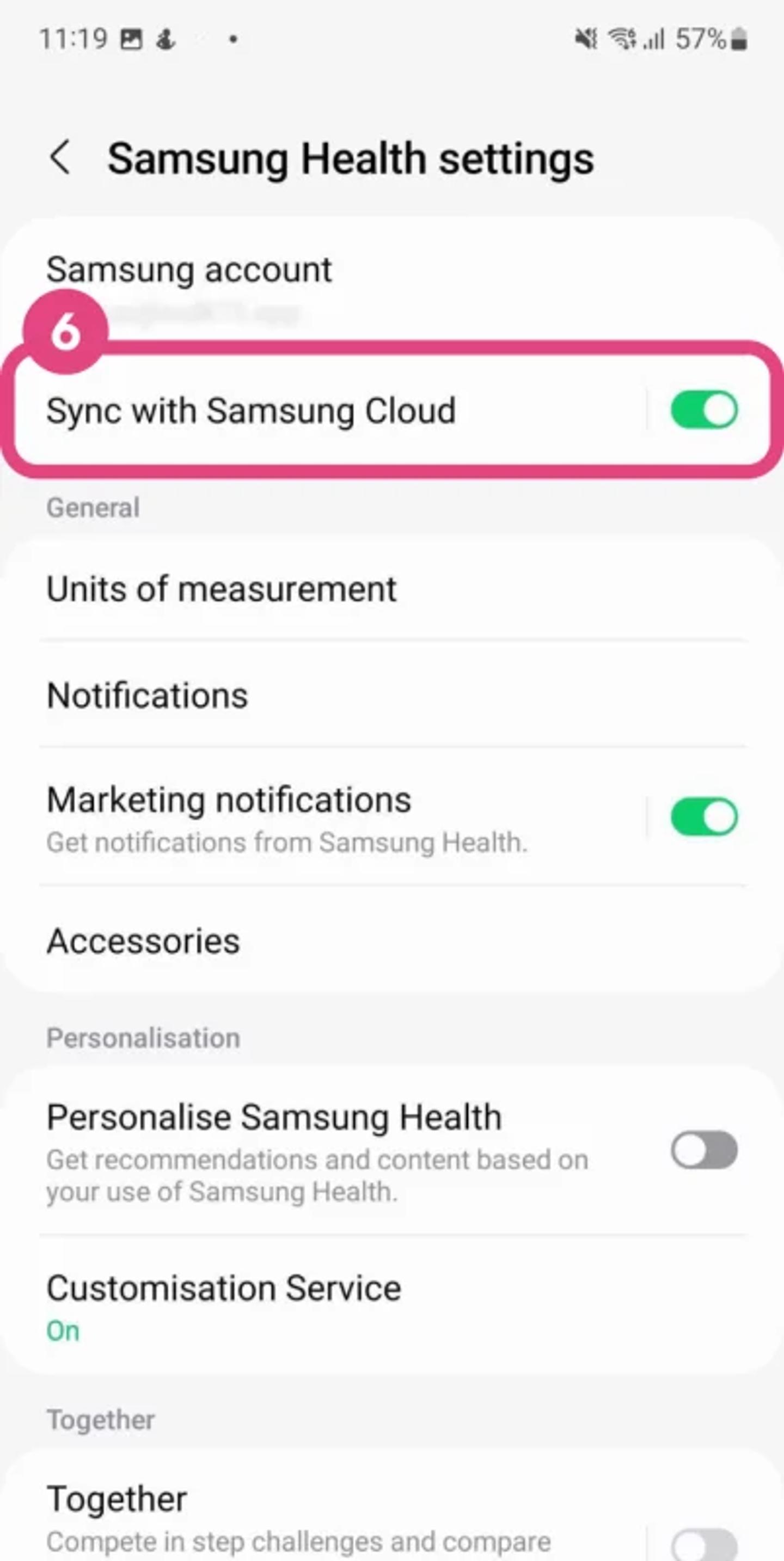
6. Turn on synchronization with Samsung Cloud
Enabling this feature will allow you to seamlessly transfer steps to the #walk15 app:
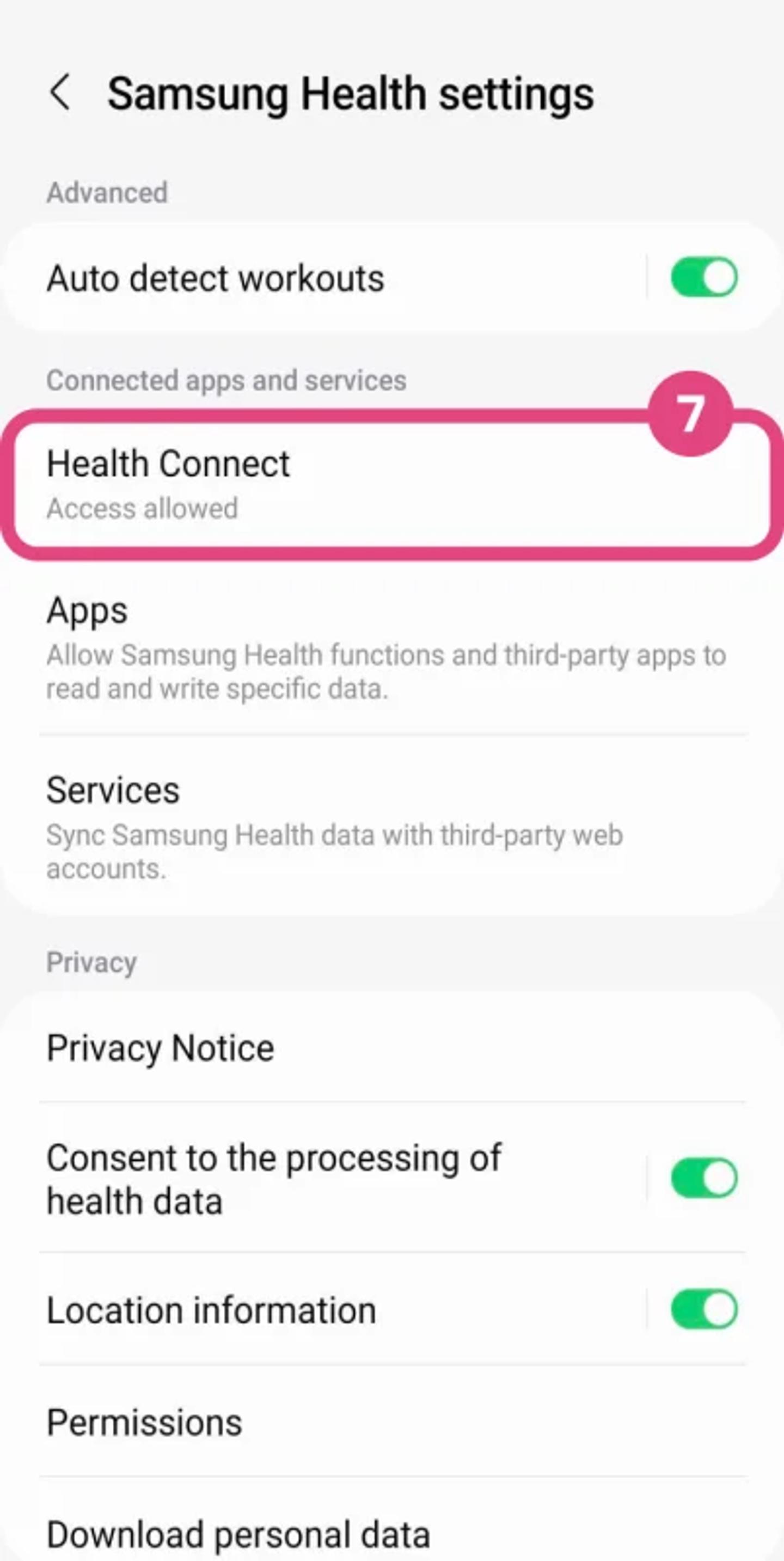
7. Open Health Connect settings
Scroll down and find Health Connect in the list. Click on Health Connect to open the list of permissions:
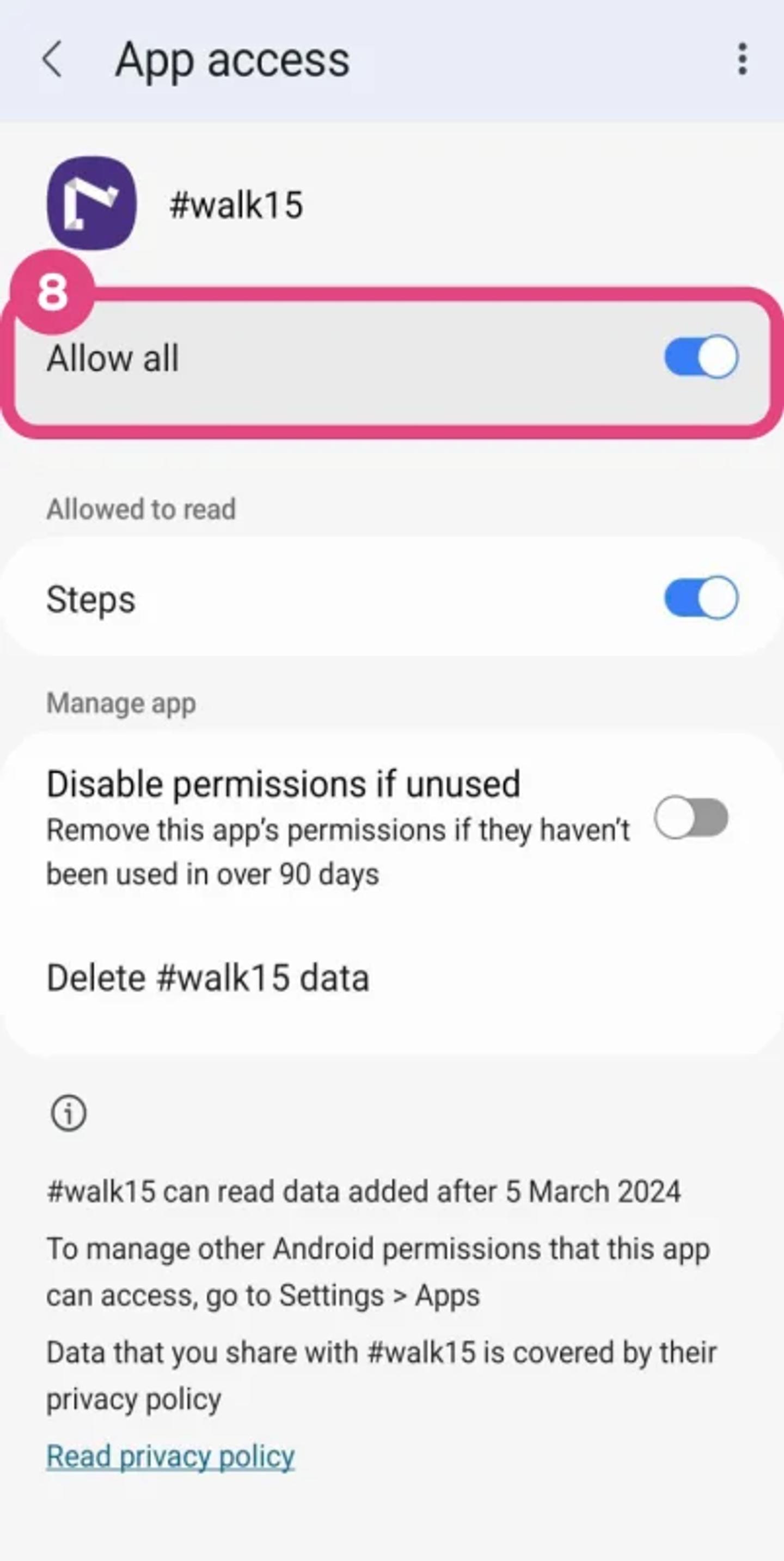
8. Ensure permissions for Walk15 are enabled
Click on Walk15 in the list and see if all permissions are enabled. These permissions are necessary for your step count to be displayed in the Walk15 app:
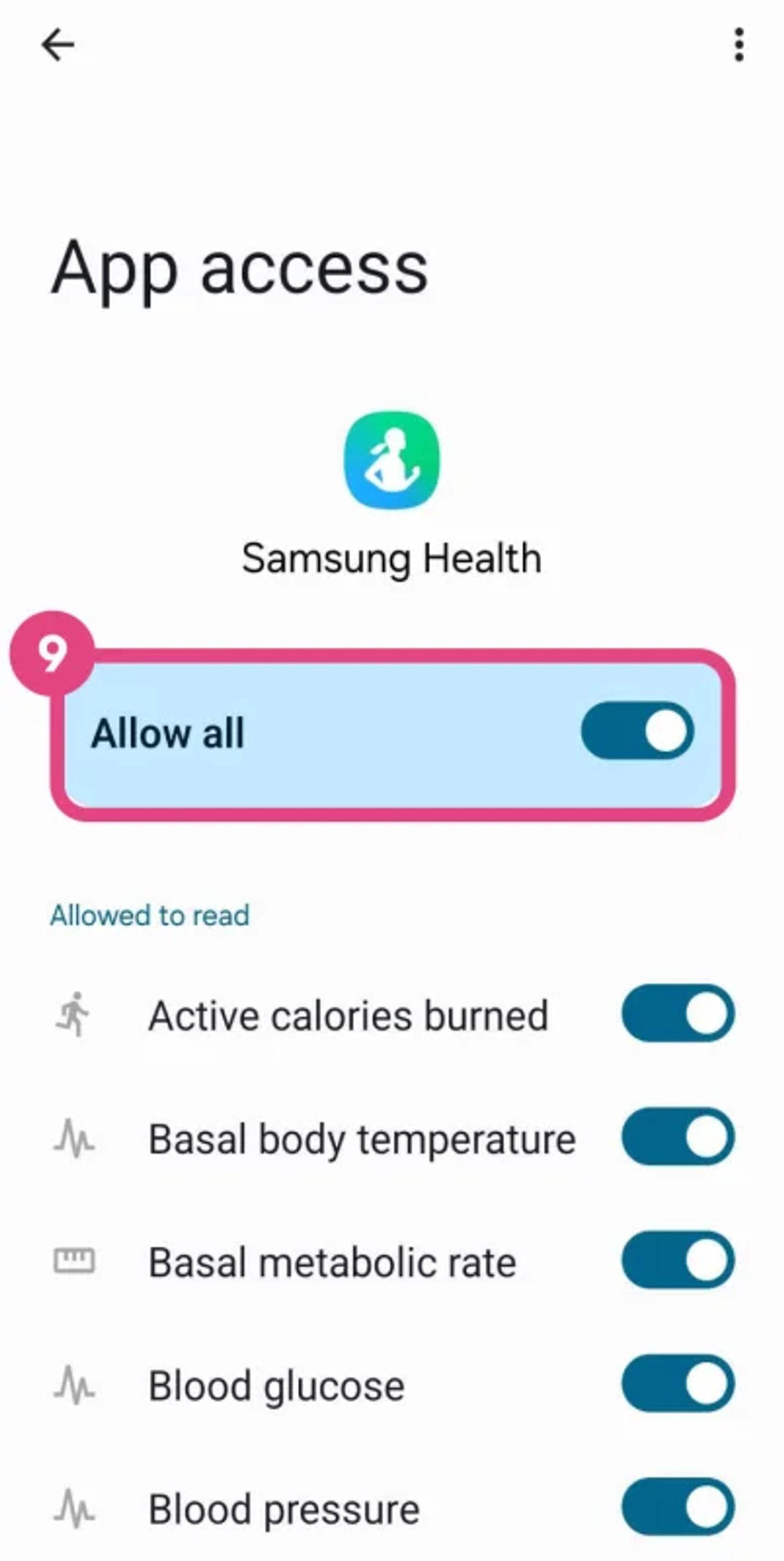
9. Ensure permissions for Samsung Health are enabled
Go back and click on Samsung Health in the list and see if all permissions are enabled. These permissions are necessary for your step count to be displayed in the Walk15 app:
10. Set Samsung Health as the priority data source
If you are using a Samsung watch, we recommend checking that Samsung Health is set as the primary source for your step data.
In the Samsung Health app, go to:
Profile → Settings → Health Connect → Manage data → Data sources and priority
If Samsung Health is already listed:
- tap the three-dot menu (⋮);
- select Move to top;
- make sure Samsung Health is the first data source.
If Samsung Health is not listed:
- add Samsung Health as a data source;
- move it to the top of the list.
Below is an example of how the correct configuration should look:
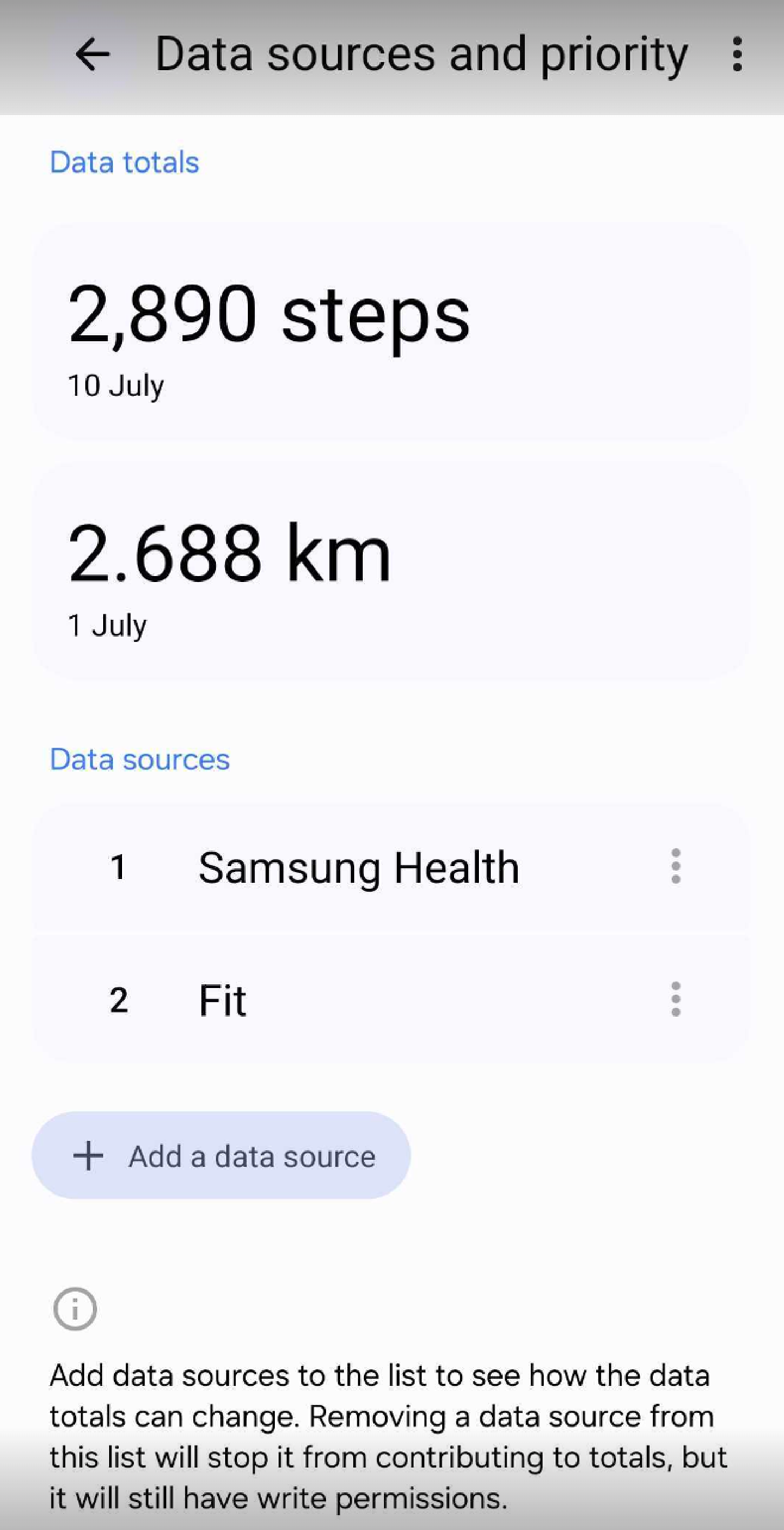
This ensures that your steps are transferred from your Samsung watch instead of your phone.
11. Check which apps can write step data
If you notice that Walk15 displays more steps than Samsung Health, we recommend checking which apps are allowed to write step data.
Open:
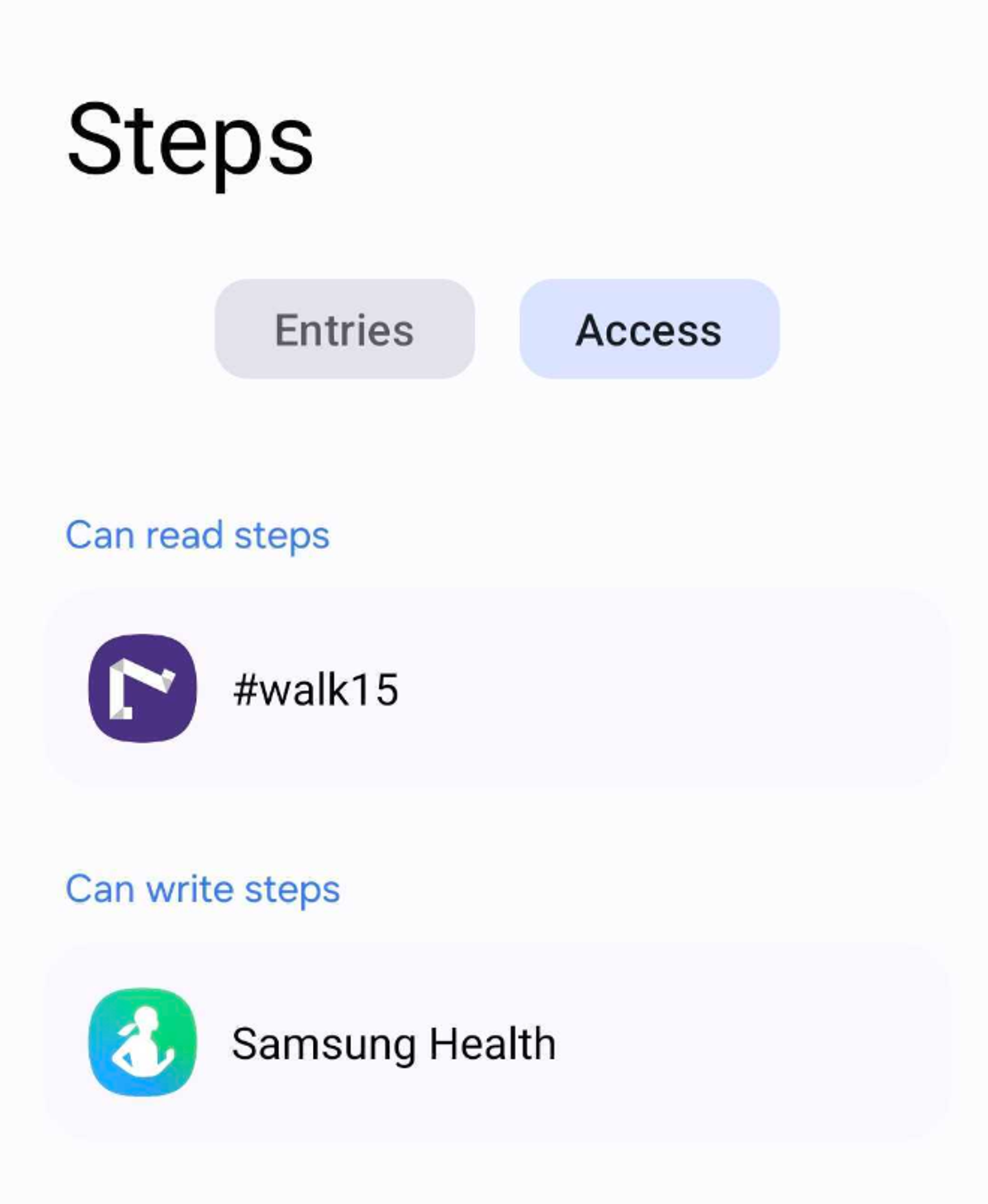
Health Connect → Data & access → Steps → App access
Under Can write, we recommend leaving only:
✅ Samsung Health
If you see other apps (for example Google Fit or other health apps) that are also allowed to write step data, we recommend disabling their permission.
This will prevent multiple apps from writing the same step data.
The correct configuration should look like this:
12. Check if It Works
Go back to the main screen of the Walk15 app to check if the step data from Health Connect is now visible. If it doesn't show up immediately, wait a short while for the sync to complete.